> ## Documentation Index
> Fetch the complete documentation index at: https://docs.saagas.ai/llms.txt
> Use this file to discover all available pages before exploring further.

# Setting Backgrounds

<iframe width="560" height="315" src="https://www.youtube.com/embed/K4TOrB7at0Y?si=9Zv-qKB5s_DnEfOx" title="YouTube video player" frameborder="0" allow="accelerometer; autoplay; clipboard-write; encrypted-media; gyroscope; picture-in-picture; web-share" referrerpolicy="strict-origin-when-cross-origin" allowfullscreen />

This guide will walk you through the process of adding a background in Trupeer. Now you can customize the background using pre-existing images or by uploading your own. Additionally, you can adjust padding settings to refine the final appearance to your preference.

### Step 1: Accessing the Visuals Menu

Find the ‘Add Background’ option and toggle it on.
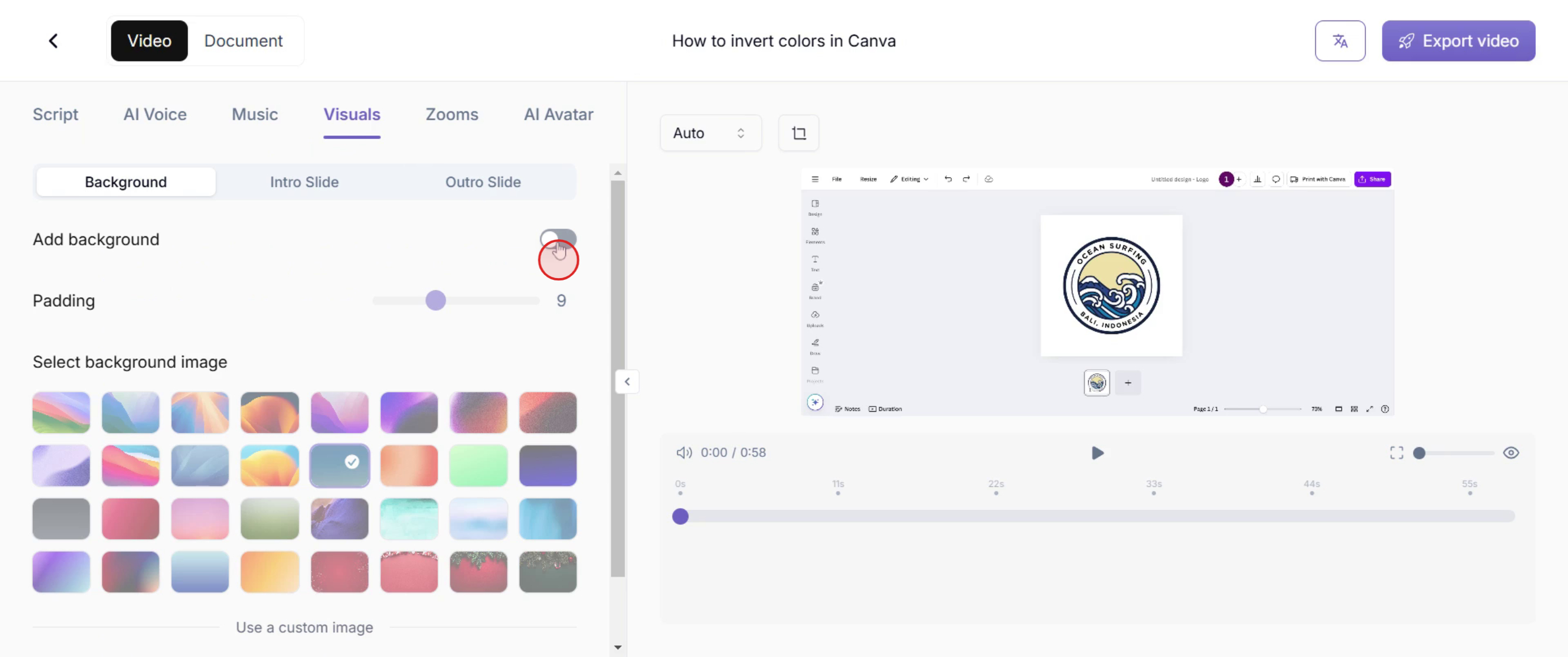
<img src="https://mintcdn.com/saagas/jyEt5WOE6CX0teay/images/DemoImage.png?fit=max&auto=format&n=jyEt5WOE6CX0teay&q=85&s=76442a96f59a26eb8315aa8fdd833a6b" alt="/images/DemoImage.png+_existingInIndexedDbMintlify" width="2674" height="1120" data-path="images/DemoImage.png" />
